
Gamepad Control 2
Plug & Play MIDI Converter for Gamepad Controllers
Play a Drum Rack with your buttons, open a filter with a tilt, or ride track volumes with your thumb. Gamepad Control 2 turns the controller you already know into an instrument for Ableton Live.
Own version 1? Upgrade for $5
Complete overview
Finger drumming on a gamepad
Assign a kick to a shoulder button, a snare to the D-pad and hi-hats to the face buttons. Each press lights up on the controller display and triggers the corresponding pad in Live. For pitched instruments, use Momentary to release a note when you lift your finger, or Toggle to hold it until the next press.

Notes, layers & mappings
Four sounds on one button
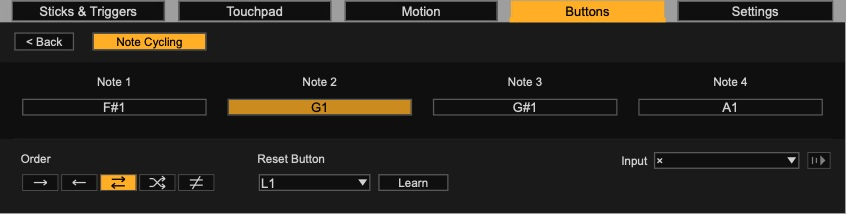
Assign four notes to one button to rotate through hi-hats, vocal chops or variations of the same snare. Cycle forward, backward, back and forth, or randomly. Choose Other for random playback without consecutive repeats.
Assign a reset button to bring the next hit back to the first note.
Hold a button for a second part
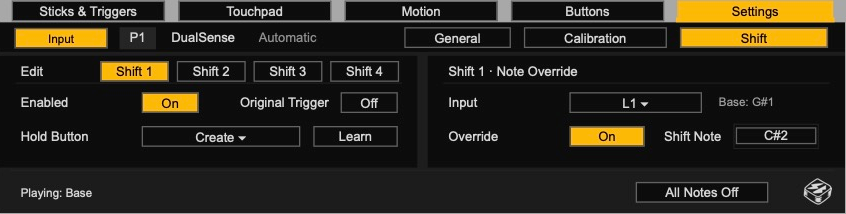
Keep your main drum layout under your fingers. Hold a Shift button and the same shoulder buttons can play a fill or a second set of sounds. Release it to return to the original notes.
Set up to four layers. Each layer has its own hold button, note overrides and choice of whether the hold button still plays its own note.
One move, eight destinations
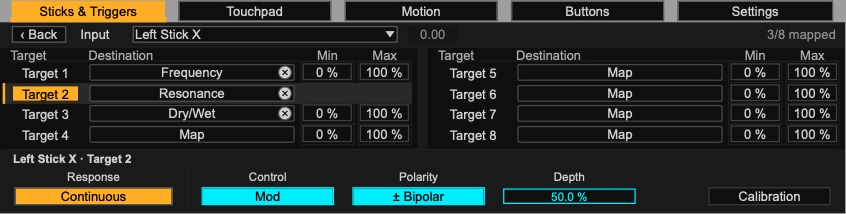
Open a filter, raise its resonance and bring up the wet mix with one stick. Each destination has its own settings: Remote sets the parameter within your chosen range; Mod adds movement around its current value.
Turn on Auto Select to jump to the settings for the last button or trigger you played.
Tilt to move a parameter
Tilt the controller left or right to sweep a filter. The dot on the X/Y graph shows how the device responds as you move.
Hold the controller in your playing position and choose Recenter. Set a dead zone to ignore small movements around that position, or add smoothing to steady each axis.
Choose Centered to put the resting position halfway through the mapped range, or One-Sided to start at the minimum.
Two fingers, four axes
On a supported touchpad, each finger has its own X and Y mappings. Use one finger to sweep a filter and a second to change the delay feedback.
Touch Contact responds when you touch the surface. Touchpad Click responds when you physically press it down. Each can independently send a MIDI note or control Live parameters. For example, touch to play a synth note and click to switch an effect on or off.
Haptic Companion
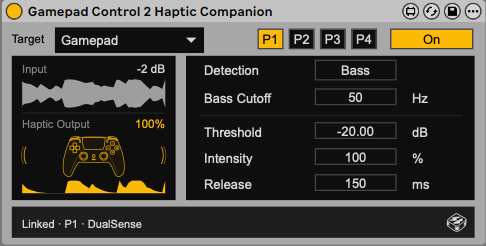
Place the Companion after a Drum Rack to feel each kick as you play it. Put it on a different track to follow that track’s audio instead. Choose the Gamepad Control 2 instance and player that should receive the vibration.
Bass follows the low end; Full follows the whole signal. Threshold sets how loud a hit has to be, Intensity sets its strength, and Release sets how quickly the vibration fades.
MIDI Bridge
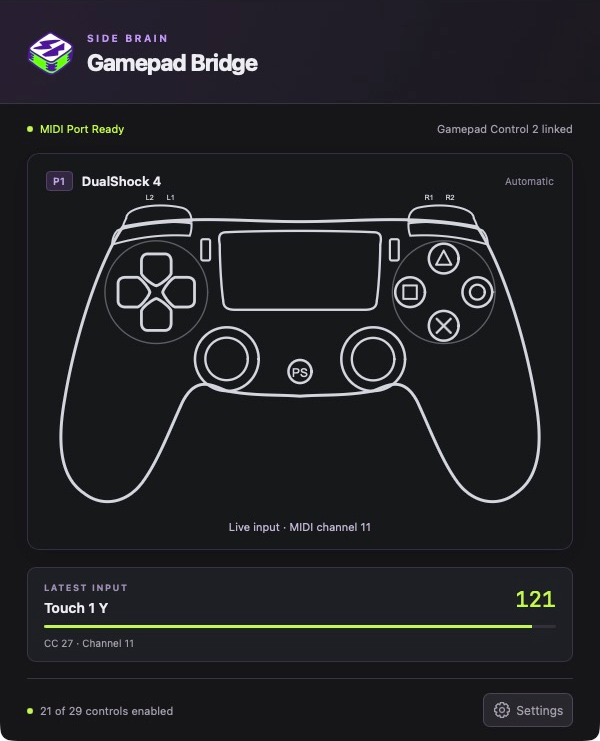
Use your gamepad with Live’s native MIDI Map Mode on Mac or Windows. Enable Remote for the Gamepad Control input, then map a stick to a track fader or a button to an effect switch. No separate virtual MIDI bus is needed.
Change the MIDI channel, edit note and CC numbers, or invert a CC. Turn off inputs you don’t want to map, such as motion or touch.

Gamepad Control Performance Template
This is the Set played at the start of the overview. The Gamepad track has drums, arps, lead sounds and glitch effects mapped to the controller. Play the kick, hat, rim and snare from the rack, then use the Touchpad Jammer for a melodic part.
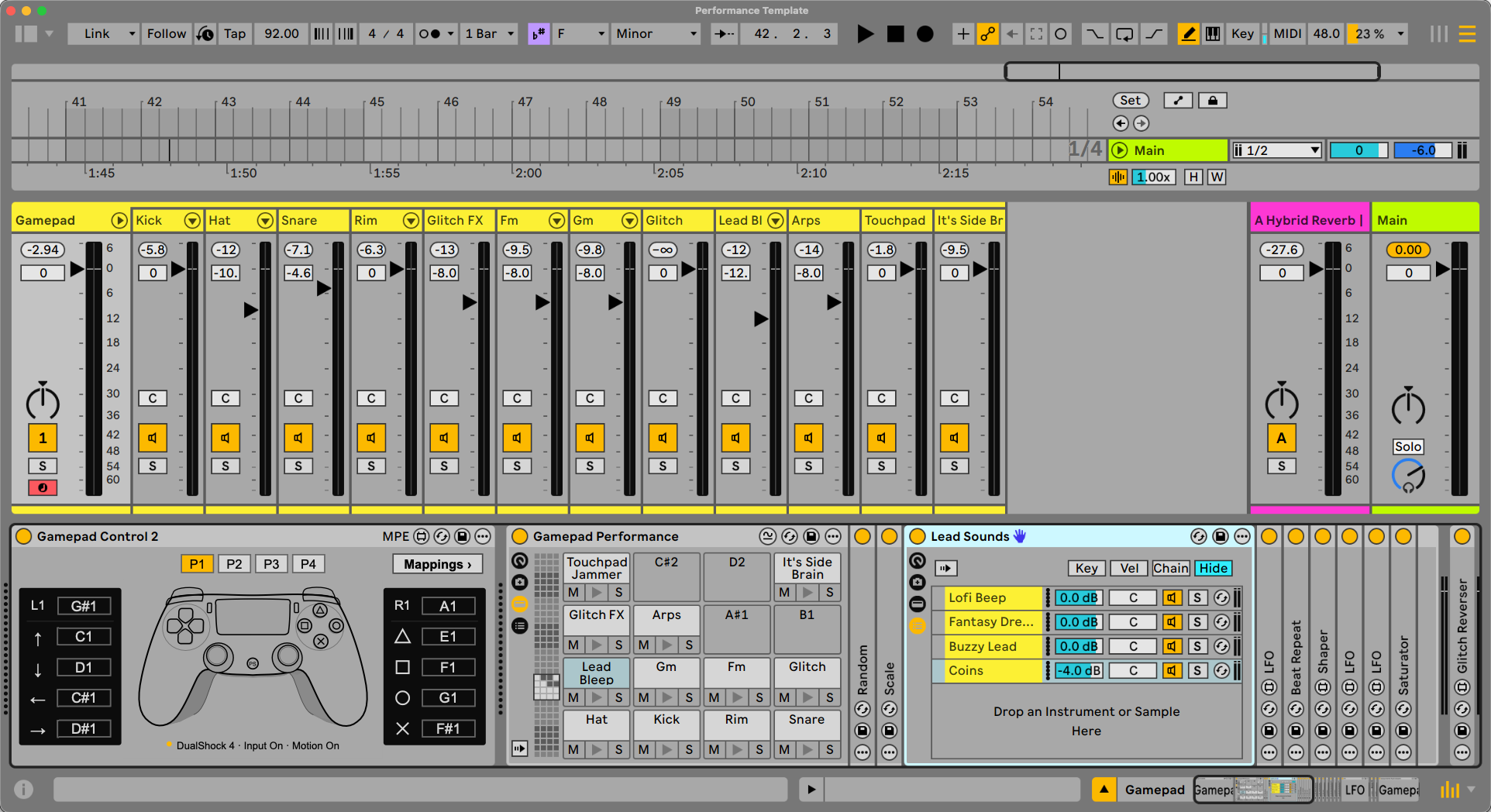
What do I need to open the template?
Open Performance Template.als inside the included Performance Template Project folder. The Set was saved in Live 12.4.16. For all its effects, install the Creative Extensions and PitchLoop89 Packs. Will Savin’s free Harpeggiator is already included.
More ways to play and control Live
-
Controller detection
Use up to four controllers. Button labels and illustrations follow the controller assigned to each player. Swap controllers between player slots.
-
Button assignments
Set a MIDI note for each button, or use a face button, D-pad direction or shoulder button to control Live parameters. Choose Momentary or Toggle behavior.
-
Sticks and triggers
Map stick movement and trigger pressure to Live. Each stick has its own center, dead zone and response settings.
-
Multi-Mapping
Assign up to eight destinations to one input. Set a Remote range or choose Mod with its own polarity and depth for each destination.
-
Motion
Map tilt on two axes. Each axis has its own dead zone, smoothing and choice of centered or one-sided response.
-
Touchpad
Map two touch points independently. Touching the pad can play a note while sliding a finger controls an effect. The physical click has its own assignment.
-
Note Cycling
Set four notes per input. Cycle forward, backward, back and forth or randomly, with an option to avoid repeats. Another button can reset the sequence.
-
Shift layers
Hold a button to access alternate notes. Set up to four layers and choose which notes change in each.
-
Auto Select
Follow the last button or trigger you play, including while editing Note Cycling.
-
Controller lighting
Choose a fixed color or let the color respond to your playing.
-
Haptic Companion
Use bass frequencies or the full audio signal to drive vibration on a supported controller. Follow individual hits and route vibration to a specific player.
-
MIDI Bridge
Use Live’s MIDI Map Mode with editable note and CC numbers, CC inversion, MIDI channels and switches for sticks, motion and touchpad. Mac and Windows apps are included, with no virtual MIDI bus needed.
Will my controller work?
Controllers and connection types
Controller layouts include PlayStation DualSense and DualShock 4; Xbox Series X|S, One, Elite and 360; Nintendo Switch Pro and first-generation Joy-Con (left, right or paired); 8BitDo Pro 2, Pro 3, SN30 Pro, SN30 Pro+, Ultimate Bluetooth, Ultimate Wired and Ultimate 2C Wireless; Logitech F310 and F710; Steam Controller (2015), Amazon Luna and Google Stadia. Other recognized gamepads use a generic layout.
For Nintendo Switch 2 Joy-Cons, use a software bridge such as WaveBird for Mac or Switch2Connect for Windows.
On macOS, DualSense motion, light bar and vibration were tested over Bluetooth. DualShock 4 Bluetooth tilt was also verified with version 2.0.3. On the Xbox Series controller, buttons and sticks worked over USB and Bluetooth; Share and vibration worked over Bluetooth in testing. Features depend on the controller, operating system and connection. Browse the SDL controller mapping database.
Live, Max and MIDI Bridge requirements
The main device and Haptic Companion run on macOS and Windows. Use Live Suite, or Live Standard with the Max for Live add-on. The oldest verified Mac setup is Live 12.4.15b6 with Max 9.1.5.
The optional Windows MIDI Bridge is for Intel/AMD 64-bit PCs running Windows 11 25H2 or later with Windows MIDI Services in Service Mode and the runtimes listed in its setup guide. The Mac Bridge is not notarized and the Windows Bridge is not code-signed; follow the included platform instructions. The illustrated manual and setup guides are included with your single-user license.
Controller display, lighting and stick calibration
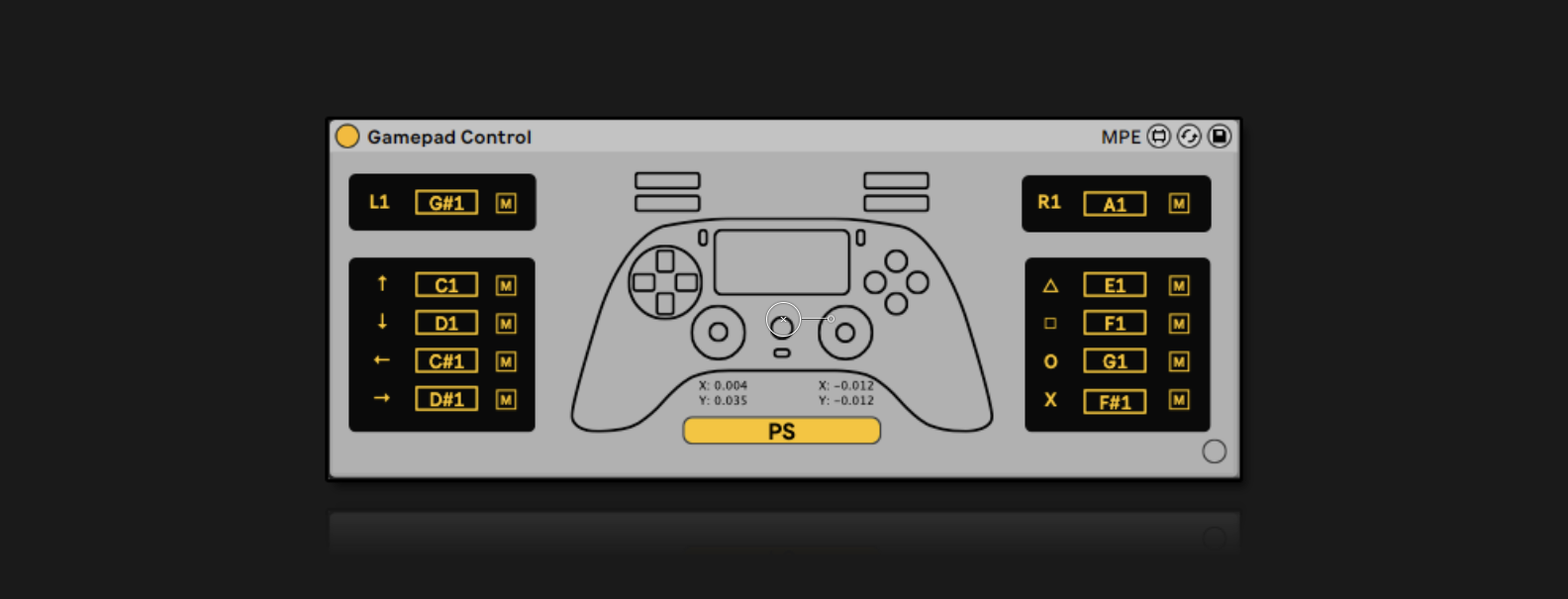
The device shows the layout of the connected controller and highlights inputs as you play. On controllers with a supported light bar, choose a fixed color or let Dynamic Color follow your button presses and stick movements.
Calibrate each stick separately. Set Center corrects an off-center stick, Dead Zone ignores small movements around neutral, and Response changes how the stick moves through its range.
Can I use more than one controller?
Assign connected controllers to P1 through P4. Each Haptic Companion can target a specific Gamepad Control 2 device and player.
Upgrade from version 1
Sign in to Gumroad with the email you used to buy Gamepad Control 1. The upgrade button includes your discount code, GC2UPGRADE.
What’s changed
New Features, Bug Fixes and Design Updates
Version 2.0.3 · latest update
- Added the Performance Template with mapped drums, arps and a Touchpad Jammer.
- Fixed DualShock 4 Bluetooth motion on macOS when button input worked but tilt mappings stayed still.
- Added DualSense Edge to the DualSense Bluetooth motion setup. A physical Edge has not been tested.
Version 2.0.2
- Fixed touchpad Y direction on Mac and Windows. Both touch contacts now send 127 at the top and 0 at the bottom.
- Added Invert for every CC control, including buttons set to CC. Invert is disabled in Note mode.
- Invert settings are saved, and Latest Input shows the resulting CC value.
- Note buttons now display Pressed / Released instead of Down / Up.
- Updated the manual and setup instructions.
Version 2.0.1
- Optimized the MIDI Bridge controller-display feed to reduce processing overhead and improve Live’s visual responsiveness.
- Fixed continuous display updates accumulating unnecessary internal Max messages on Max 9.1 or later.
More creative tools
New sounds, new rhythms and faster ways to work
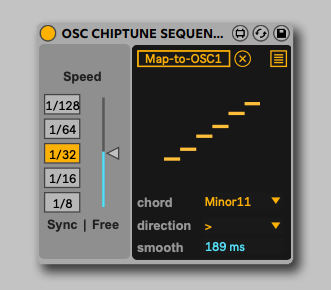
Chiptune OSC
Turn Ableton synths into chiptune instruments and explore a different kind of sound.

MIDI Bounce
Capture the output of your MIDI effects with one click and keep the ideas moving.
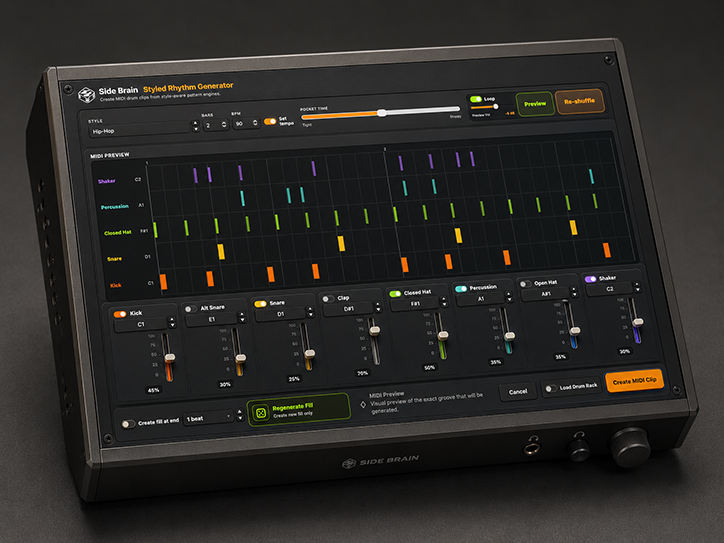
Styled Rhythm Generator
Create beats with faders, explore 20 drum styles and shape the feel of your patterns.
Recommended workshops
Go deeper into sound design, production and your creative process

Side Brain’s Study Group
A weekly online workshop for music producers of all levels. Explore a new creative topic every Sunday, with ideas you can bring straight into your own music.
-
A new topic each week
From musical styles and sound design to focused production techniques
-
Learn by making
Clear explanations, musical examples and practical ideas for your next track
-
Revisit the session
A recording is included so you can return to the ideas at your own pace