
MAX FOR LIVE
Gamepad Control 2
Plug & Play MIDI Converter for Gamepad Controllers
Play a Drum Rack with your buttons, open a filter with a tilt, or ride track volumes with your thumb. Gamepad Control 2 turns the controller you already know into an instrument for Ableton Live.
Own version 1? Upgrade for $5
Performance
Finger drumming on a gamepad
Assign a kick to a shoulder button, a snare to the D-pad and hi-hats to the face buttons. Each press lights up on the controller display and triggers the corresponding pad in Live. For pitched instruments, use Momentary to release a note when you lift your finger, or Toggle to hold it until the next press.

What’s new in version 2
Notes, layers & mappings
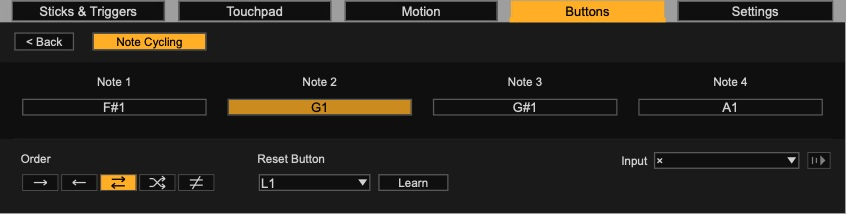
Four notes on one button
Note Cycling gives each button its own four-note sequence. Play them forward, backward, back and forth, randomly, or randomly without repeating the last note. Assign another button to reset the cycle to step one.
Shift layers
Hold a Shift button to play alternate notes. Set up to four layers and choose which buttons change on each one.
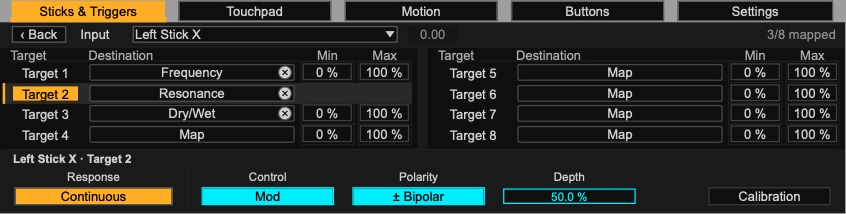
One move, eight destinations
Map a stick, trigger or button to up to eight Live parameters. Give each destination its own Remote range, or use Mod to add movement around its current setting.
Auto Select
Press a button or trigger to bring up its mapping settings while you play. Face buttons, D-pad directions and shoulder buttons can send notes or control parameters.
Motion & touch
Tilt to move a parameter
Set the controller’s resting position with Recenter. Adjust dead zone and smoothing separately for X and Y, then choose whether neutral tilt maps to the middle or the start of a parameter’s range.
On a supported touchpad, map two fingers independently. Touching the pad and physically clicking it are separate inputs.

Included with Gamepad Control 2
Haptic Companion & MIDI Bridge
Max for Live audio effect
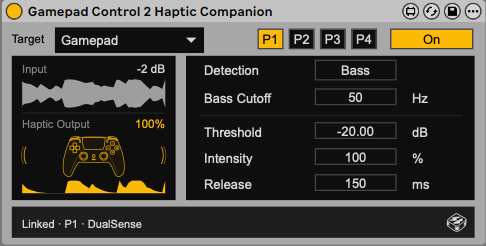
Feel the bass
Put Haptic Companion on a kick track, a bass bus or the full mix. It turns that track’s audio into vibration on the controller you select. Choose Bass to follow low frequencies or Full to follow the whole signal.
Standalone app / Mac + Windows
Use Live’s MIDI Map Mode
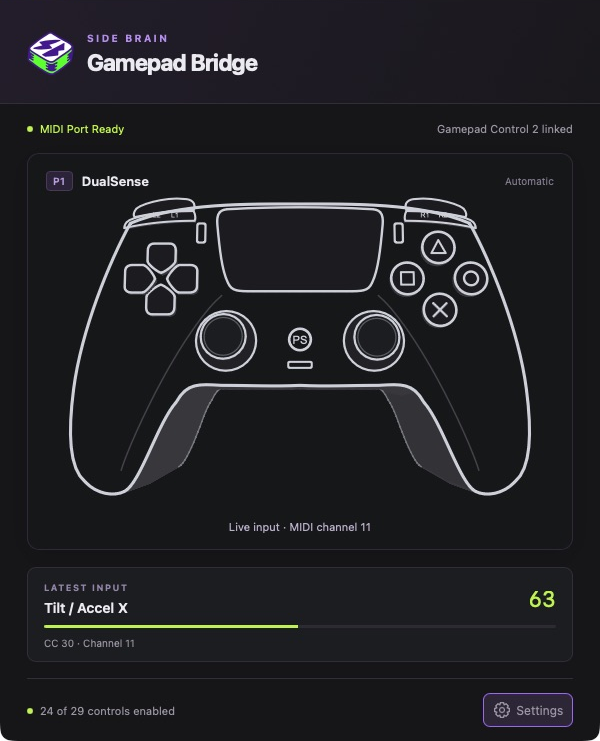
MIDI Bridge makes your gamepad appear as a MIDI input in Live. Enable Remote for its port, enter MIDI Map Mode and move the control you want to assign. Customize the MIDI channel and note or CC numbers in the app.
More ways to play and control Live
-
Controller detection
Use up to four controllers. Button labels and illustrations follow the controller assigned to each player. Swap controllers between player slots.
-
Button assignments
Set a MIDI note for each button, or use a face button, D-pad direction or shoulder button to control Live parameters. Choose Momentary or Toggle behavior.
-
Sticks and triggers
Map stick movement and trigger pressure to Live. Each stick has its own center, dead zone and response settings.
-
Multi-Mapping
Assign up to eight destinations to one input. Set a Remote range or choose Mod with its own polarity and depth for each destination.
-
Motion
Map tilt on two axes. Each axis has its own dead zone, smoothing and choice of centered or one-sided response.
-
Touchpad
Map two touch points independently. Touching the pad can play a note while sliding a finger controls an effect. The physical click has its own assignment.
-
Note Cycling
Set four notes per input. Cycle forward, backward, back and forth or randomly, with an option to avoid repeats. Another button can reset the sequence.
-
Shift layers
Hold a button to access alternate notes. Set up to four layers and choose which notes change in each.
-
Auto Select
Follow the last button or trigger you play, including while editing Note Cycling.
-
Controller lighting
Choose a fixed color or let the color respond to your playing.
-
Haptic Companion
Use bass frequencies or the full audio signal to drive vibration on a supported controller. Follow individual hits and route vibration to a specific player.
-
MIDI Bridge
Use Live’s MIDI Map Mode with editable note and CC numbers, CC inversion, MIDI channels and switches for sticks, motion and touchpad. Mac and Windows apps are included, with no virtual MIDI bus needed.
Requirements & compatibility
Will my controller work?
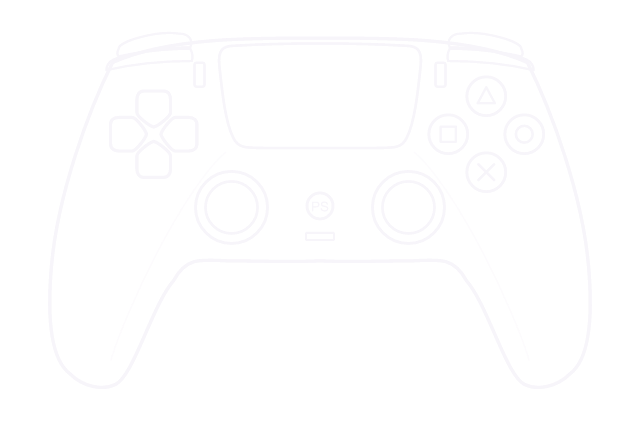
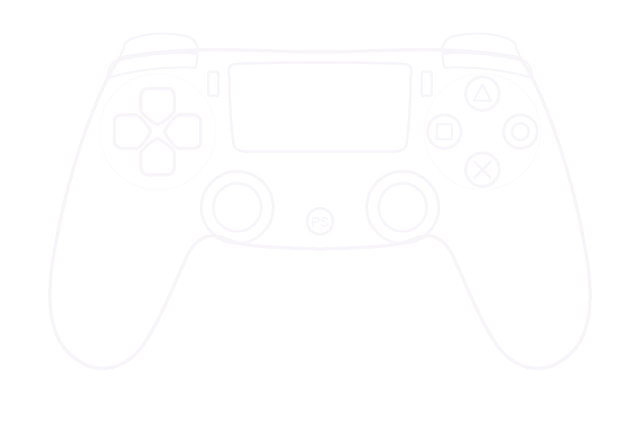
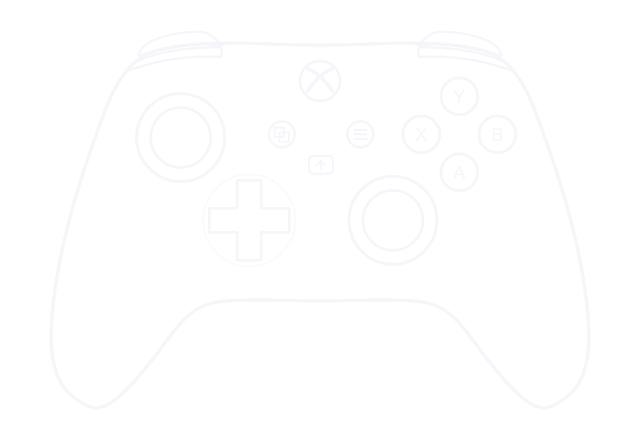
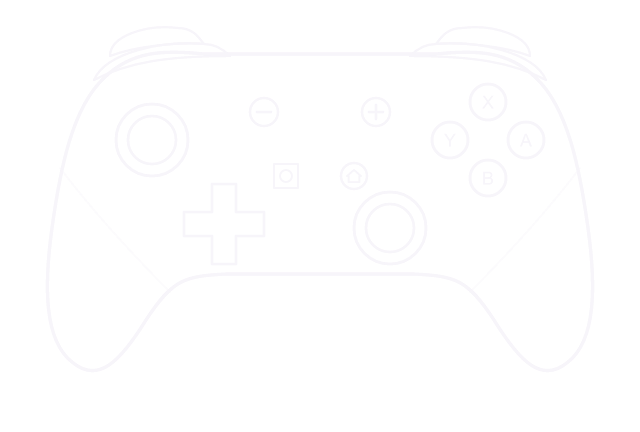
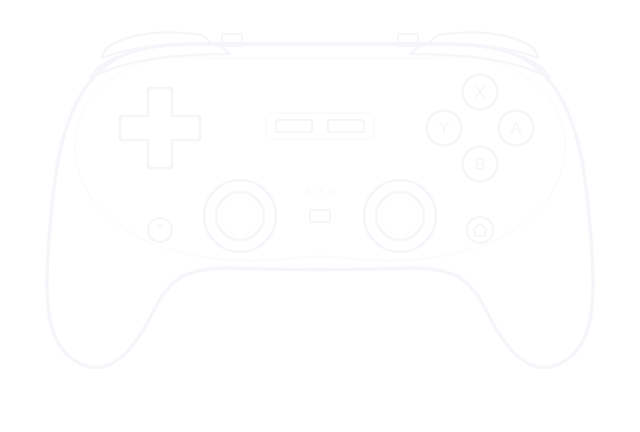
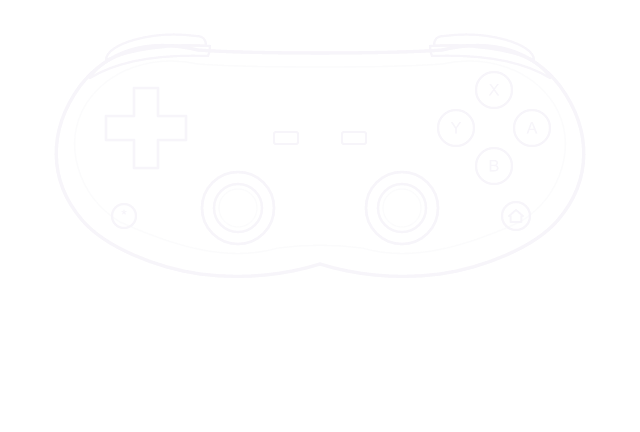
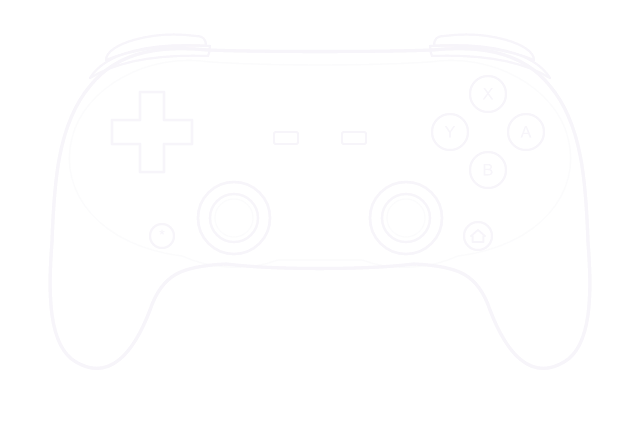
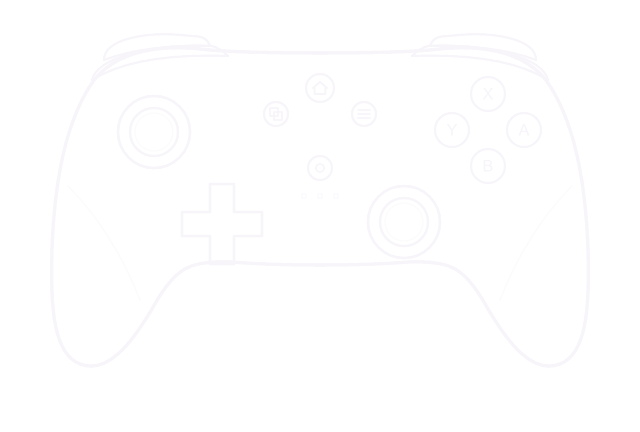
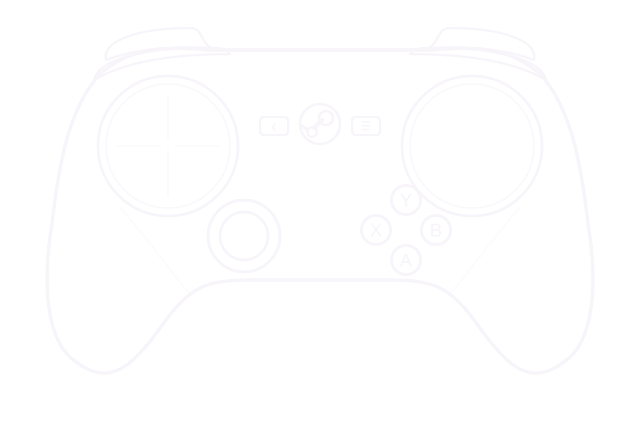
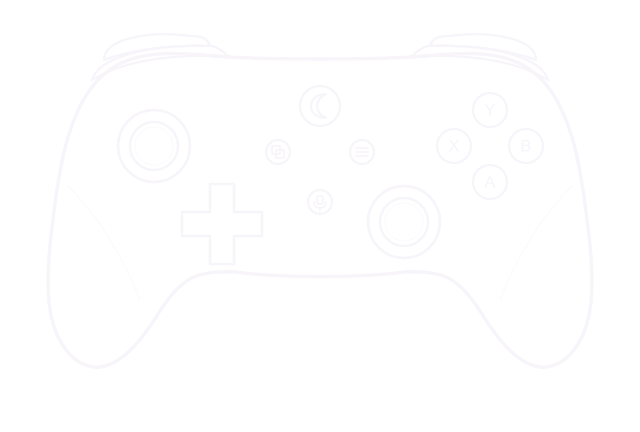
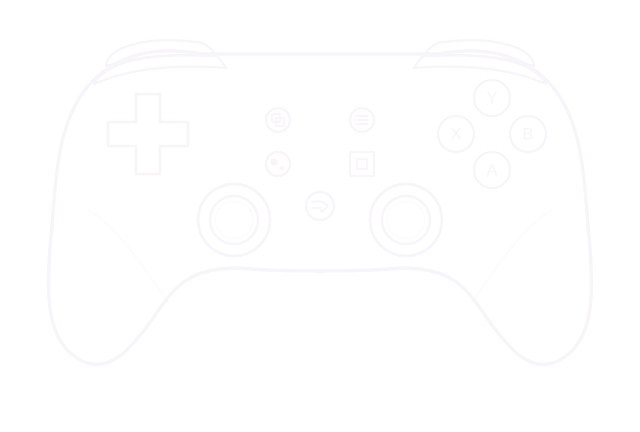
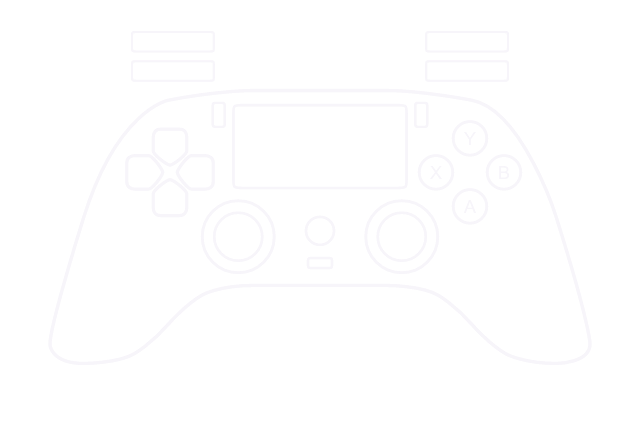
Controllers and connection types
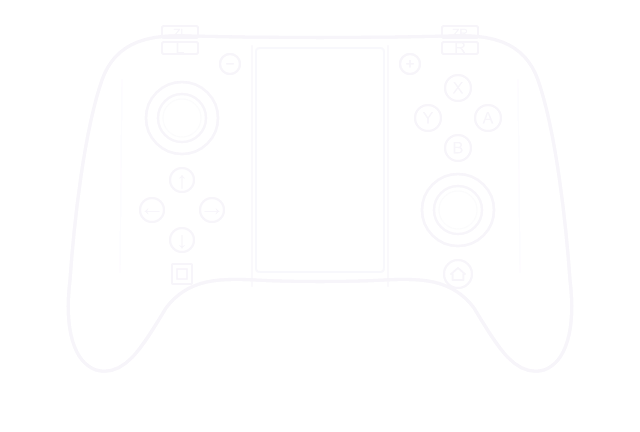
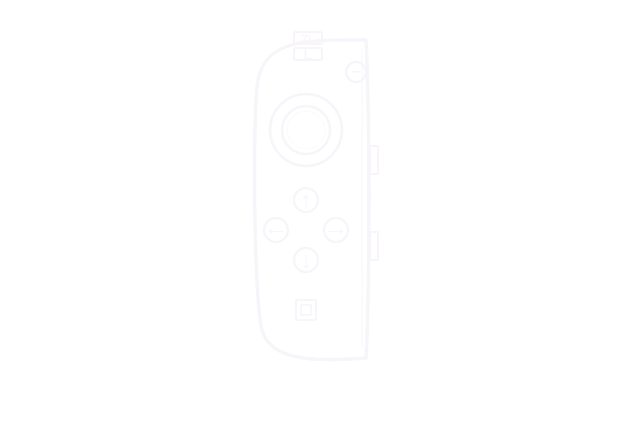
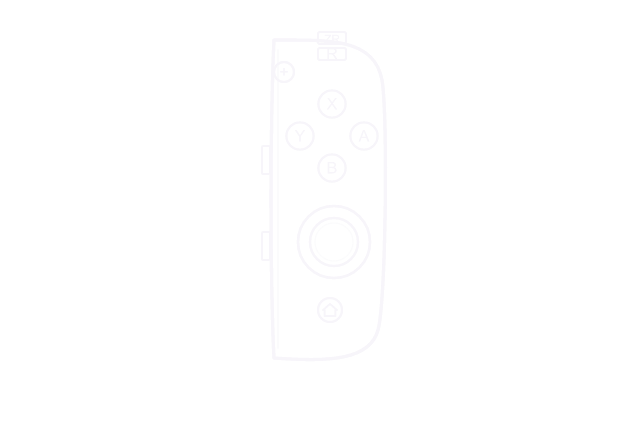
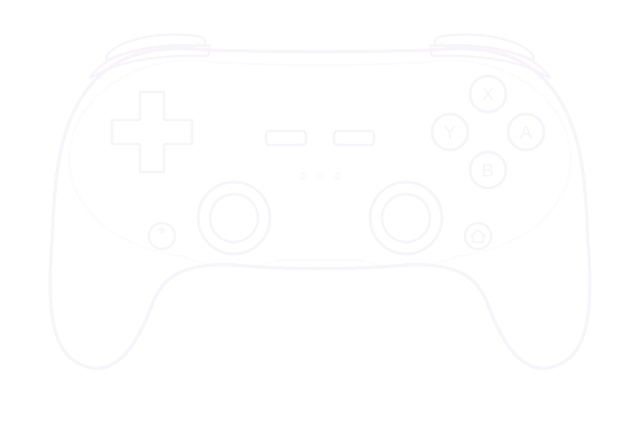
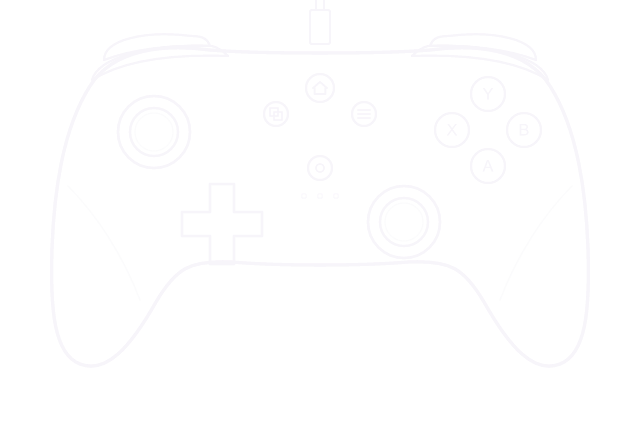
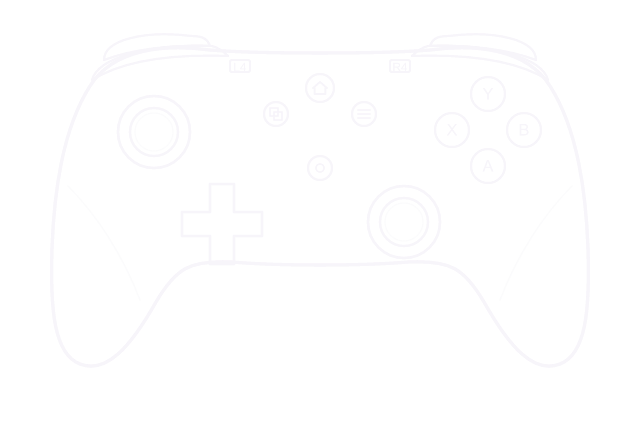
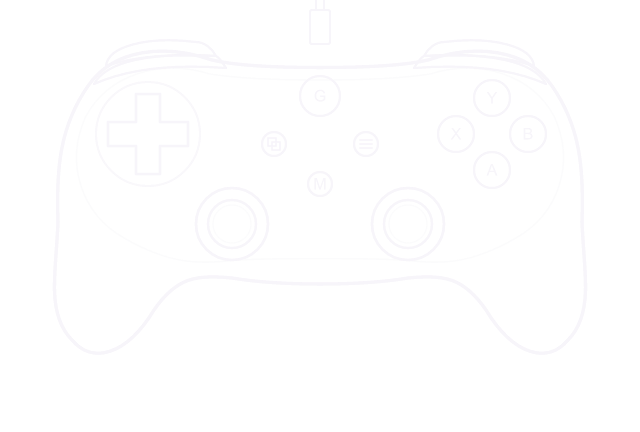
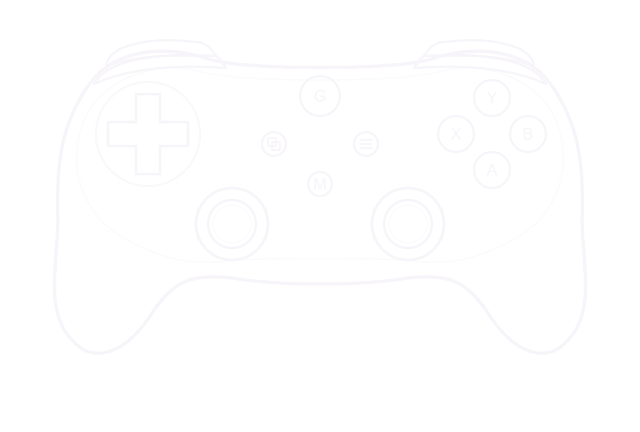
Controller layouts include PlayStation DualSense and DualShock 4; Xbox Series X|S, One, Elite and 360; Nintendo Switch Pro and first-generation Joy-Con (left, right or paired); 8BitDo Pro 2, Pro 3, SN30 Pro, SN30 Pro+, Ultimate Bluetooth, Ultimate Wired and Ultimate 2C Wireless; Logitech F310 and F710; Steam Controller (2015), Amazon Luna and Google Stadia. Other recognized gamepads use a generic layout.
For Nintendo Switch 2 Joy-Cons, use a software bridge such as WaveBird for Mac or Switch2Connect for Windows.
On macOS, DualSense motion, light bar and vibration were tested over Bluetooth. On the Xbox Series controller, buttons and sticks worked over USB and Bluetooth; Share and vibration worked over Bluetooth in testing. Features depend on the controller, operating system and connection. Browse the SDL controller mapping database.
Live, Max and MIDI Bridge requirements
The main device and Haptic Companion run on macOS and Windows. Use Live Suite, or Live Standard with the Max for Live add-on. The oldest verified Mac setup is Live 12.4.15b6 with Max 9.1.5.
The optional Windows MIDI Bridge is for Intel/AMD 64-bit PCs running Windows 11 25H2 or later with Windows MIDI Services in Service Mode and the runtimes listed in its setup guide. The Mac Bridge is not notarized and the Windows Bridge is not code-signed; follow the included platform instructions. The illustrated manual and setup guides are included with your single-user license.
Controller display, lighting and stick calibration
The device shows the layout of the connected controller and highlights inputs as you play. On controllers with a supported light bar, choose a fixed color or let Dynamic Color follow your button presses and stick movements.
Calibrate each stick separately. Set Center corrects an off-center stick, Dead Zone ignores small movements around neutral, and Response changes how the stick moves through its range.
Can I use more than one controller?
Assign connected controllers to P1 through P4. Each Haptic Companion can target a specific Gamepad Control 2 device and player.
What’s changed
New Features, Bug Fixes and Design Updates
Version 2.0.2 · latest update
- Fixed touchpad Y direction on Mac and Windows. Both touch contacts now send 127 at the top and 0 at the bottom.
- Added Invert for every CC control, including buttons set to CC. Invert is disabled in Note mode.
- Invert settings are saved, and Latest Input shows the resulting CC value.
- Note buttons now display Pressed / Released instead of Down / Up.
- Updated the manual and setup instructions.
Version 2.0.1
- Optimized the MIDI Bridge controller-display feed to reduce processing overhead and improve Live’s visual responsiveness.
- Fixed continuous display updates accumulating unnecessary internal Max messages on Max 9.1 or later.
Upgrading from version 1?
Use GC2UPGRADE at checkout with your original purchase email to get version 2 for $5.
More creative tools
New sounds, new rhythms and faster ways to work
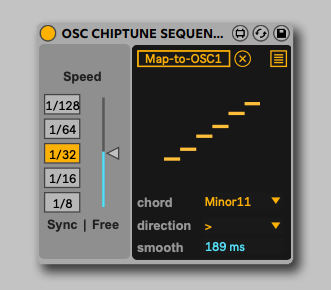
Chiptune OSC
Turn Ableton synths into chiptune instruments and explore a different kind of sound.

MIDI Bounce
Capture the output of your MIDI effects with one click and keep the ideas moving.

Styled Rhythm Generator
Create beats with faders, explore 20 drum styles and shape the feel of your patterns.
Recommended workshops
Go deeper into sound design, production and your creative process
Recommended Workshops


Side Brain’s Study Group
A weekly online workshop for music producers of all levels. Explore a new creative topic every Sunday, with ideas you can bring straight into your own music.
-
A new topic each week
From musical styles and sound design to focused production techniques
-
Learn by making
Clear explanations, musical examples and practical ideas for your next track
-
Revisit the session
A recording is included so you can return to the ideas at your own pace