
MIDI Bounce
Print your MIDI effects in one click
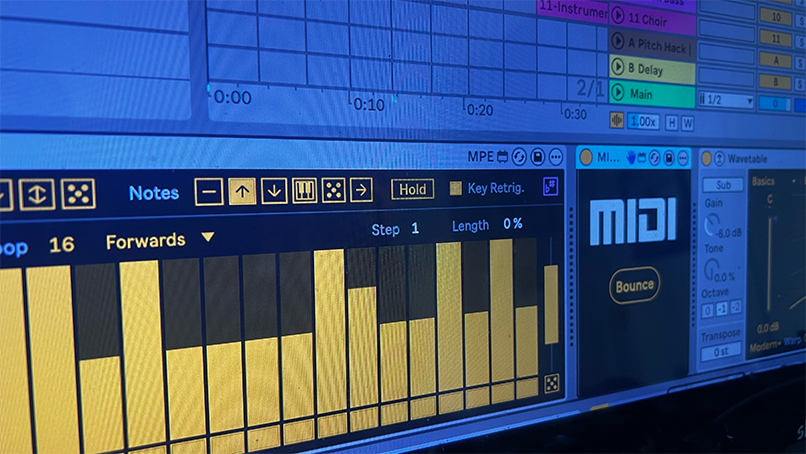
Turn the output of your MIDI effects and MIDI plug-ins into editable clips. MIDI Bounce handles the routing, recording and copy-back in Session or Arrangement View.
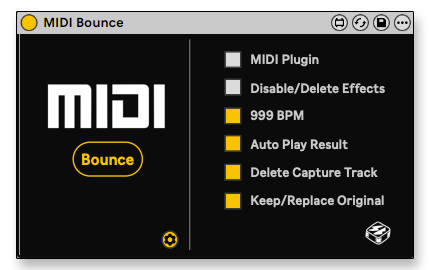
Keep the notes you hear
Capture an arpeggio, a chord progression or a generative pattern, then make it your own in the piano roll.
Version 1.6 adds a complete Arrangement workflow, more reliable Session capture and verified copy-back before cleanup
- 01 · Select
Choose your source
Place MIDI Bounce on a MIDI track and select the clip you want to capture.
- 02 · Bounce
Press one button
An adjacent capture track is created and routed automatically to record the processed MIDI.
- 03 · Make it yours
Edit the result
The finished clip returns to your source track, ready to reshape, rearrange or keep as it is.
Right where it belongs
Bounce begins at the selected clip’s exact start, stops at its end and returns the result to its original timeline position.
Replace the original, or preserve the complete original track as a muted Pre-Bounce backup—with its clips, devices, routing and automation

Catch the idea
Keep the flow
The bounce lands in the next available slot below your source clip. Need more room? MIDI Bounce creates a new scene and trims the result to your original loop length.
Automatically launch the finished clip, or record freely with no source clip selected and press Bounce again to stop

The full toolkit
From the first note to the final cleanup
-
One-button bouncing
MIDI or Key-map the Bounce button and capture a musical idea without manually building a recording track.
-
Automatic routing
Create an adjacent MIDI capture track and route the source track’s processed output automatically.
-
MIDI plug-in support
Capture MIDI generated by compatible plug-ins such as Scaler, Cthulhu and Thesys.
-
Exact-length clips
Record the full source clip in Session or Arrangement View, with reliable final-note capture and clean loop boundaries.
-
A place in Session
Use the next available slot below the source. A new scene is created when you need one.
-
Arrangement automation
Start at the selected clip, stop at its end and copy the result back to the same timeline position.
-
Keep a backup
Replace the original or preserve the complete original track as a muted Pre-Bounce backup.
-
Optional 999 BPM
Accelerate recording with a temporary tempo increase, or stay at your Set’s normal tempo.
-
Choose your cleanup
Disable or delete MIDI effects on the source track according to your chosen setting.
-
Verified copy-back
Optionally delete the raw capture track only after the finished clip has been successfully copied and verified.
-
Ready when you are
Selected source clips are activated and launched when needed, without retriggering clips already playing.
-
Loop-ready results
Finished clips have Loop enabled automatically in both Session and Arrangement View.
Ready for your next idea
Requirements
Tested with Ableton Live 12.2 and Max 9. Earlier versions are not officially supported.
Requires Max for Live on macOS or Windows.
Installation
Place the device in your User Library under:
Presets / Audio Effects / Max Audio Effect
When should I use 999 BPM mode?
999 BPM mode temporarily raises Live’s global tempo to speed up recording, then restores the original tempo after the bounce.
Tempo-synced devices, time-dependent modulation and tempo automation may behave differently while this mode is active. For those projects, turn it off and bounce at the Set’s normal tempo.
What happens to the original?
In Arrangement View, choose Replace Original or Keep Original Backup. The backup preserves the complete original track, including clips, devices, routing, automation and clip activation state.
If copy-back cannot be confirmed, the completed capture track is preserved.
Original video tutorial
A walkthrough of the original MIDI Bounce workflow. For current 1.6 behavior, see the overview above.

MIDI Bounce · Original tutorial
What’s changed
New Features, Bug Fixes and Design Updates

MIDI Bounce 1.6 · Demo & overview
Version 1.6 · latest update
Session View
- Bounced clips now appear in the first available slot below the source clip.
- Automatically creates a new scene if no lower clip slot is available.
- Added a safety tail to reliably capture final notes and note-offs.
- Physically crops the safety tail, preventing notes beyond the original loop boundaries.
- Fixed bounces capturing only the first note or cutting off later notes.
- Removed the delay before transferring the finished clip back.
- Added optional automatic playback of the bounced clip.
- Automatically launches a selected source clip if it is not already playing, synchronized with the capture clip.
- Does not retrigger source clips that are already playing.
- Stops the source clip after capture only if MIDI Bounce launched it.
- Added open-ended recording when no Session clip is selected. Press Bounce again to stop.
Arrangement View
- Bounces now begin at the selected clip’s actual Arrangement position instead of bar 1.
- Uses the selected clip’s precise start and end times.
- Fixed playback occasionally jumping to bar 1 and stopping after one beat.
- Automatically stops recording and transport at the end of the selected clip.
- Returns the bounced clip to the source clip’s original timeline position.
- Places the playhead at the bounced clip’s beginning after completion.
- Added Replace Original and Keep Original Backup modes.
- Keep Original Backup duplicates and mutes the complete original track, preserving its clips, devices, routing, automation, and clip activation state.
- Prevents repeated “Pre-Bounce” suffixes in backup track names.
- Made Delete Capture Track available for Arrangement cleanup.
- Automatically selects the finished Arrangement clip.
- Preserves the source clip’s color.
- Restores Arrangement loop, punch, recording, and transport settings afterward.
General and Reliability
- Improved source-track and focused-clip detection.
- Finished bounced clips now have Loop enabled automatically in both Session and Arrangement View.
- Temporarily activates deactivated source clips so their MIDI is captured.
- Restores surviving source clips to their previous activation state.
- Verifies that the bounced clip was copied successfully before deleting the capture track.
- Preserves a completed capture track if copy-back cannot be confirmed.
- Restores original track-arm states after bouncing.
- Restores the original tempo and Global Quantization after 999 BPM bouncing.
- Improved cleanup of temporary scenes after failed or incomplete bounces.
- Prevented repeated names such as MIDI Bounce MIDI Bounce MIDI Bounce.
- Updated the device and JavaScript version identification to 1.6.
Version 1.5
- Added a Settings section
- Added 999 BPM toggle
- Added Auto-Play of bounced clip (Session View)
- MIDI Effects are now automatically disabled
Version 1.4
- New MIDI Plugin mode to bounce MIDI from plugins like Cthulhu, Scaler etc.
Version 1.3
- Added the option to auto-delete all midi effects on original track
- Fixed an issue where the device didn’t work properly when loaded on an individual track and not on the Main Track
- Minor visual Improvements
Version 1.2
- You can now place the device on any track, MIDI/KEY map the bounce button and bounce the currently focused clip.
- Added PUSH Control
Version 1.1
- During Bounce project jumps to 999 BPM to speed up the bounce process
Keep the MIDI moving
One click to capture it, every note yours to edit
More creative tools
New sounds, new rhythms and faster ways to work
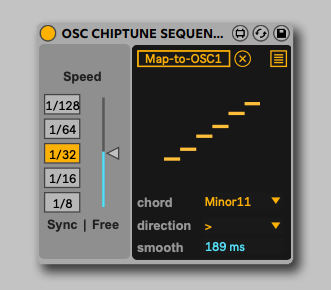
Chiptune OSC
Turn Ableton synths into chiptune instruments and explore a different kind of sound.

Keyboard Monitor
Visualize your playing with an on-screen keyboard in Ableton Live.
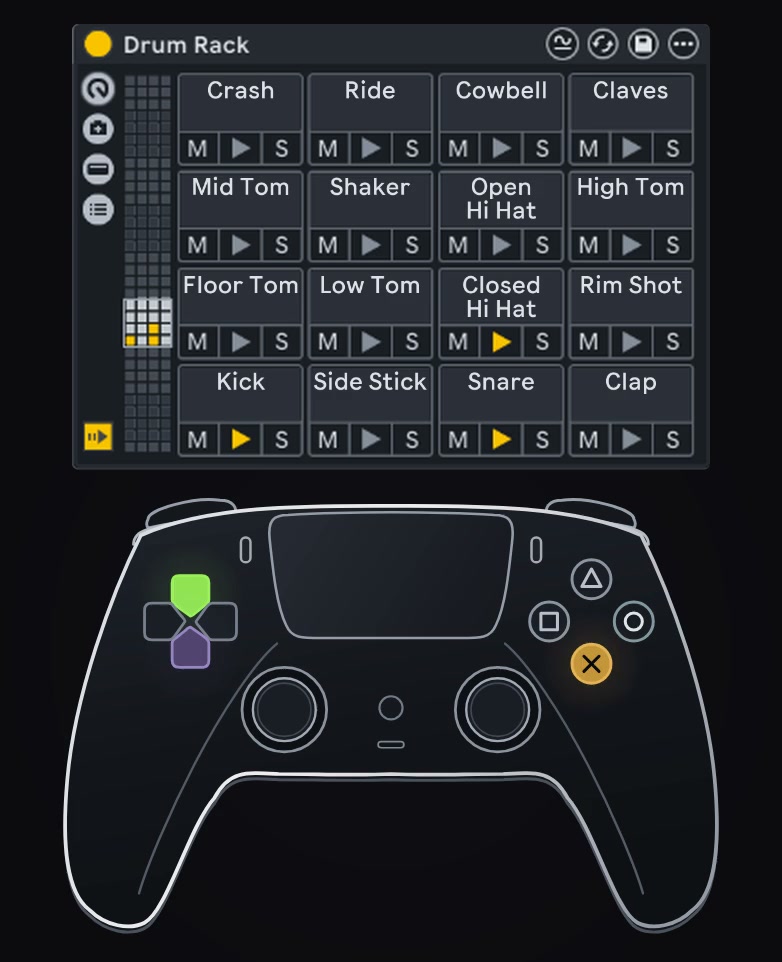
Gamepad Control 2
Play notes, control effects and explore new ways to perform with your game controller.
Recommended workshops
Go deeper into sound design, production and your creative process


Side Brain’s Study Group
A weekly online workshop for music producers of all levels. Explore a new creative topic every Sunday, with ideas you can bring straight into your own music.
-
A new topic each week
From musical styles and sound design to focused production techniques
-
Learn by making
Clear explanations, musical examples and practical ideas for your next track
-
Revisit the session
A recording is included so you can return to the ideas at your own pace